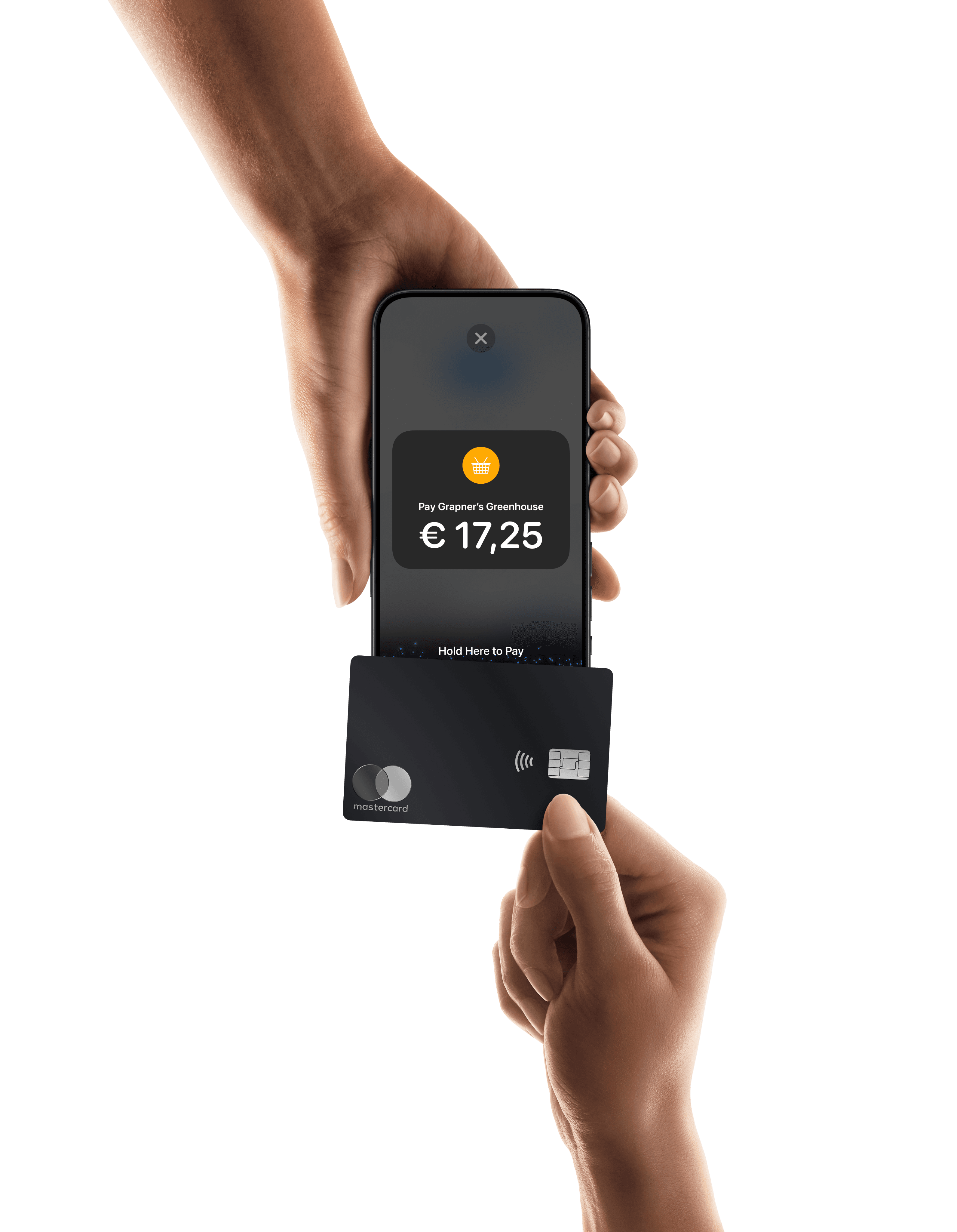
Accept credit and debit cards on WooCommerce
Mollie supports credit and debit card payments on WooCommerce. Accept Visa, Mastercard, and American Express from customers worldwide, with an embedded card form that keeps shoppers on your checkout.

Credit and debit card
Already with Mollie?
Activate credit and debit cards in your dashboard
Get started
1
Activate cards in Mollie
Log in to your Mollie Dashboard and activate credit and debit cards under Payment methods. If you're new to Mollie, create an account first.
2
Install the Mollie plugin
In WordPress, go to Plugins > Add New, search for Mollie Payments for WooCommerce, then select Install now and Activate now.
3
Connect your account
Copy your API keys from Mollie (More > Developers > API keys). Paste them into WooCommerce > Settings > Mollie Settings and save.
4
Switch on cards
In the Mollie Settings tab, select Edit next to credit and debit cards, tick Enable/Disable, and save. You can also tick Enable Mollie Components to show the card form directly on your checkout.
Accept card payments
Once enabled, credit and debit cards appear as a payment option at your WooCommerce checkout.
For more detailed instructions, read the WooCommerce payment options guide, or watch the WooCommerce setup video guide.

Frequently asked questions
Can I accept credit and debit cards on WooCommerce with Mollie?
Yes. The free Mollie Payments for WooCommerce plugin lets you accept Visa, Mastercard, and American Express at your WooCommerce checkout.
How do I add card payments to my WooCommerce store?
Activate credit and debit cards in your Mollie Dashboard, then install and connect the Mollie Payments for WooCommerce plugin. In WooCommerce > Settings > Mollie Settings, select Edit next to credit and debit cards and tick Enable/Disable.
What does it cost to accept card payments on WooCommerce with Mollie?
Mollie charges per transaction for credit and debit cards on WooCommerce, with no setup or monthly fees. See Mollie pricing for current rates.
Can customers enter their card details without leaving my WooCommerce checkout?
Yes. Enable Mollie Components in the card settings of the Mollie plugin to show an embedded card form on your WooCommerce checkout page. Mollie handles the card data securely, so it never touches your server.
Can returning customers pay by card with one click?
Yes. Turn on Store customer details at Mollie in the plugin's Advanced settings, and returning WooCommerce customers can pay with a saved card.
Can I choose which card brands show at my WooCommerce checkout?
Yes. In the card settings of the Mollie plugin, tick Enable icons selector and choose which card icons to display.
Why aren't card payments showing at my WooCommerce checkout?
Check that credit and debit cards are activated in your Mollie Dashboard and enabled in WooCommerce > Settings > Mollie Settings. Also check the Sell to specific countries field, as it limits where the payment method appears.




























Already with Mollie?
Activate credit and debit cards in your Mollie dashboard